
You've finished a late care shift, paid for training and received a confirmation email. You open it on your phone, hoping to make a start, but you still can't tell where the lessons are, whether your place will save or how you'll get the certificate your agency needs. Paying for a course isn't the same as being able to finish it.
Table of Contents
- What Online Course Access Actually Means
- Membership and One-Off Access Compared
- How to Sign In and Start a Course
- Studying on a Phone or a Weak Connection
- Why Completion Stalls and Where to Get Help
- Pick the Access That Fits Your Rota
What Online Course Access Actually Means
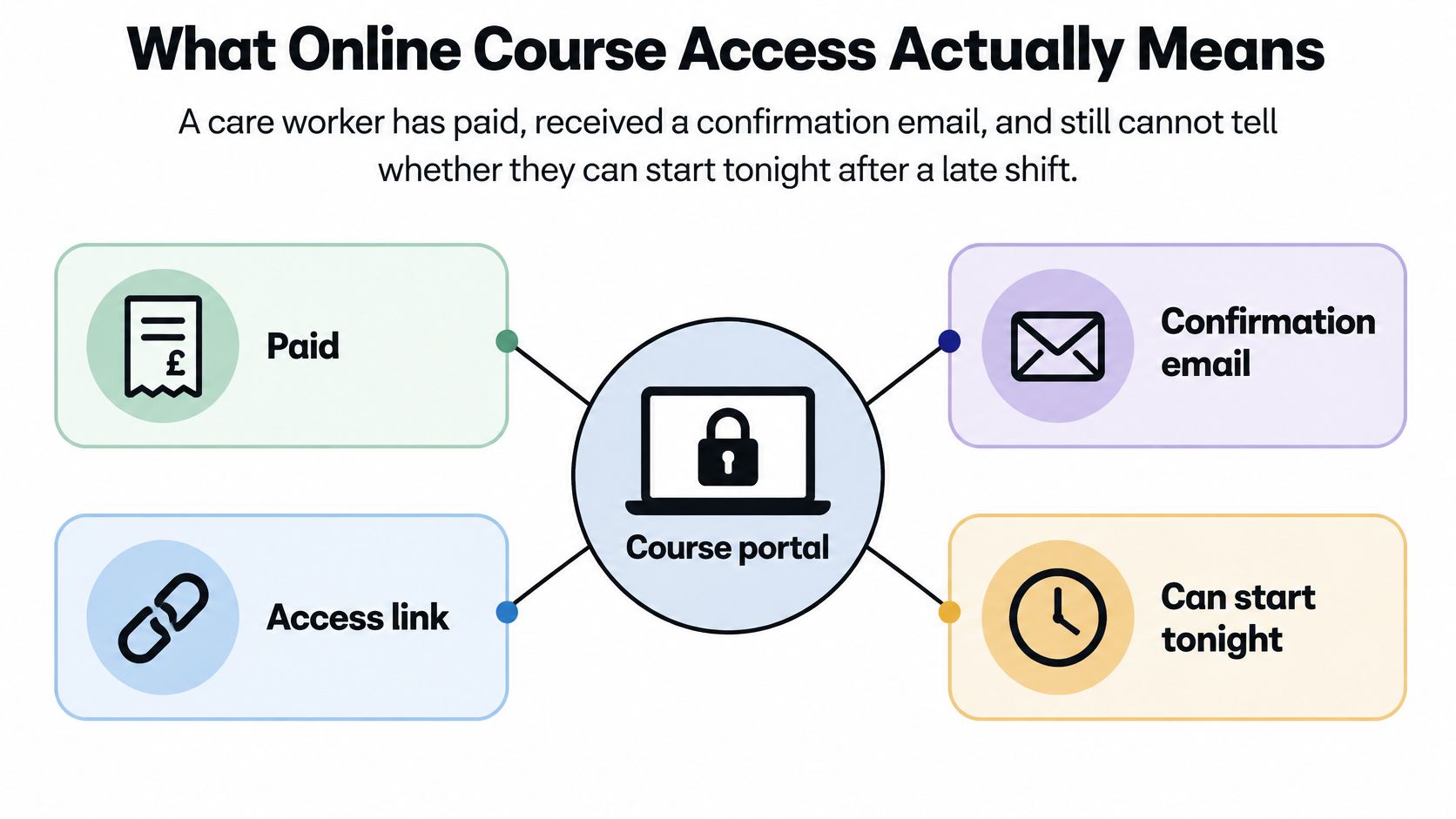
Say you've bought a refresher before your next booking. The receipt confirms your payment, but your practical questions are different: can you start tonight, leave halfway through and return tomorrow without losing your work?
Online course access means more than receiving a login. It covers the learning you can open, the conditions for using it and the evidence you can take away.
Online course access is the right to open the learning, work through it and leave with completion evidence an employer can check.
The distinction between paying and starting is easy to miss.
The parts hidden behind a login
Think of a library card. It gets you through the door, but it doesn't tell you the opening hours, which shelves you can use or whether you can take a book home.
A course account works in a similar way. Before committing, separate these questions:
- Courses included: Does your purchase cover a named course, a bundle or the available library?
- Time window: When does access start, and what ends it?
- Devices allowed: Can you use the phone, tablet or computer you have?
- Offline and resume options: What can you save, and how can you confirm your progress was recorded?
- Human support: Who can help when the password works but the lesson doesn't?
These are practical questions, not signs that you're bad with technology. A learner can understand infection prevention perfectly well and still struggle to find an assessment button hidden below a video.
Ordinary learning, different conditions
In 2023/24, 52% of UK adults had participated in learning during the previous three years, with the increase attributed partly to self-directed and online learning, according to the Learning and Work Institute as reported by the House of Lords Library.
Online learning is therefore an ordinary route into further study, not a specialist technology product. What matters for a care learner is whether the access model, device requirements, offline options and support fit around actual working hours. A large catalogue has little practical value if you can't complete the particular course your employer has requested.
Membership and One-Off Access Compared
What each access model includes
| Access point | Membership | One-off course or bundle |
|---|---|---|
| When you can start | After payment succeeds | After payment succeeds |
| How long access lasts | Only while the membership is valid | May be time-limited by the product |
| What is unlocked | The available course library, including new courses added while you pay | Only the course or bundle you bought |
| Pace and device | Own pace on phone, tablet or computer | Own pace on phone, tablet or computer |
| Certificate | Issued when you complete the course; save a copy | Issued when you complete; digital delivery timing follows the course |
| If you stop or cancel | Platform access ends; earned certificates remain valid, but re-download may stop | Remaining access follows the product window |
| Login sharing | Not allowed | Not allowed |
| Refund after you open the course | Cooling-off can be waived once modules or certificates are used | Refunds generally unavailable once access is granted, unless the law requires them |
Buying access rather than completion
The central trade-off is breadth versus a defined purchase. Membership suits an ongoing learning schedule, while a standalone purchase limits the decision to the course or bundle you need. Neither approach removes the need to complete the learning and any required assessment.
Our course access is granted once payment has successfully completed. We consider the purchase fulfilled when payment has succeeded and access has been granted, not when the learner eventually finishes.
That distinction matters if you buy training and then leave it unopened. A product may have a limited access window, and an unused account doesn't necessarily preserve that window indefinitely. Read the product terms before treating a one-off purchase as permanent ownership.
If you're comparing recurring services more generally, Check what TiedSiren costs to practise identifying the billing period and what a stated price includes. It isn't evidence of care-training suitability; for that decision, our Care Certificate training cost guide provides more relevant context.
The conditions that can catch you out
A certificate is earned, not bought. Paying gives you the opportunity to learn; successful completion produces the evidence. Keep your own certificate file rather than treating the dashboard as your only filing system.
Our certificates remain valid after cancellation, but you may lose the ability to download them when membership expires. That doesn't mean an employer must accept an old certificate indefinitely. Check the employer's refresher expectations separately.
Before opening a module: Make sure you've bought the right training and understand the cancellation terms.
Our terms provide a cooling-off period, but starting a course, accessing learning modules or downloading certificates means waiving the statutory right to a full refund. Refunds aren't available once course access has been provided unless required by law. Don't assume that viewing a lesson is the same as browsing a product description.
Your account is personal. Sharing credentials or redistributing course content is prohibited, so an agency or colleague shouldn't use your login to complete their training. Choose the model around your own need: an ongoing schedule of refreshers, or a named course required before a start date.
How to Sign In and Start a Course
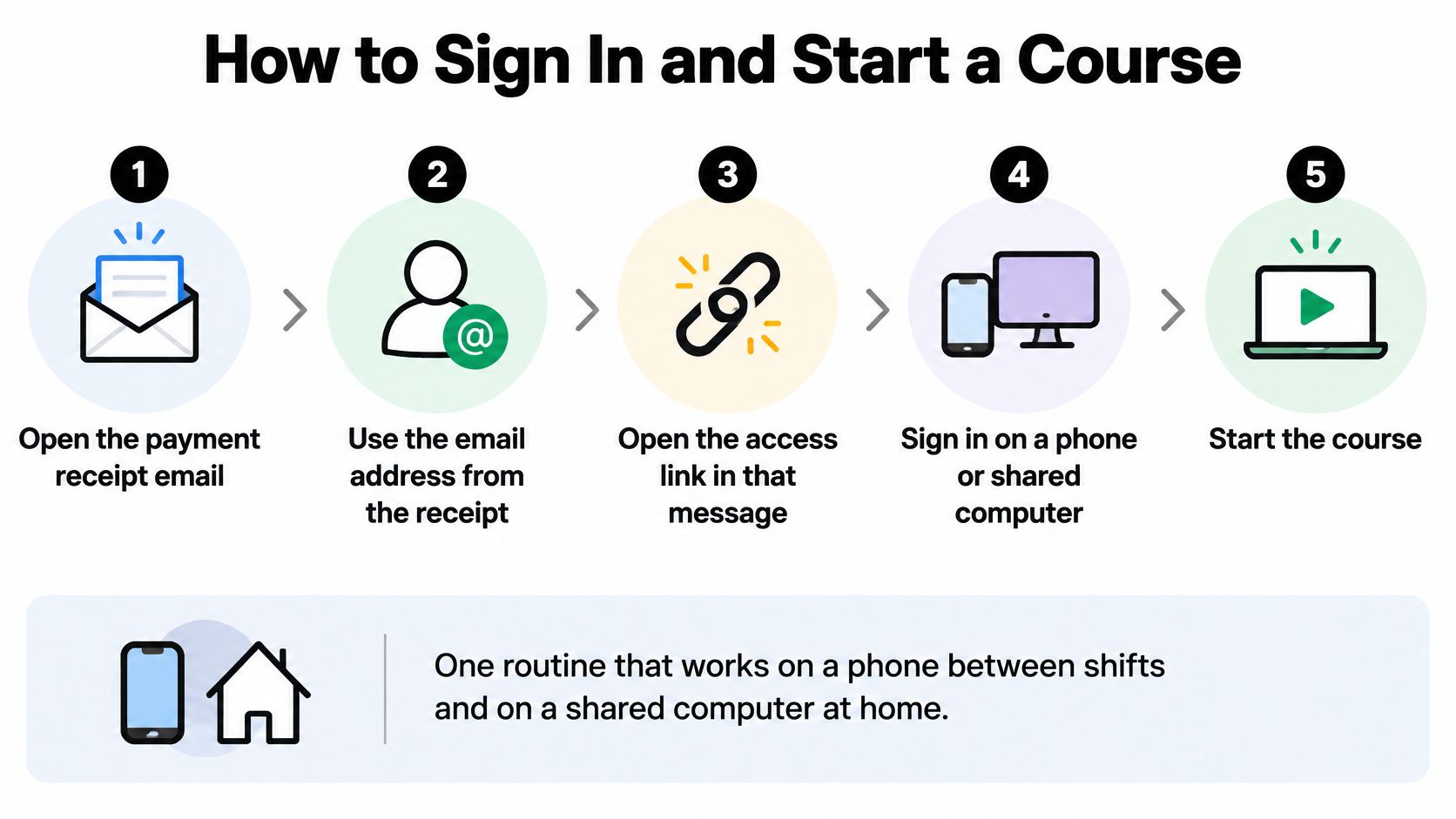
Use the same careful routine whether you're on a phone between shifts or a shared computer at home. The aim is to establish that the correct account opens the correct course and records your work.
Keep your payment receipt available while you follow the sign-in route.
Establish the right account
- Open the receipt and use its access instructions. Sign in with the email address used at checkout. A mistyped address or a different personal email can make a paid course appear missing; check the spelling before creating another account.
- Set a private password. A password manager can help you store a unique password without relying on memory. On a shared computer, decline the browser's offer to save it and sign out when you finish. The common slip is leaving the account available to the next person.
- Match the course to your receipt. Confirm the course or membership name before opening a lesson. If payment hasn't completed, repeated purchases aren't a sensible fix. Check the payment status and ask for help if the receipt and dashboard don't agree.
You don't need to understand the platform's technical setup to carry out these checks. You need to know which email owns the purchase and what that purchase should open.
Test a real study session
- Use the device you expect to study on. Our courses can be completed at your own pace, on any device. Test the phone or tablet you'll carry rather than assuming a successful laptop session settles everything. If a video fails on work Wi-Fi, try an authorised alternative connection before assuming the account is broken.
- Complete a short activity, then leave and return. Look for a completion marker or saved position before closing the page. Progress should belong to your account rather than a particular handset, but verify what the platform has recorded. Closing a tab before submitting an answer can leave that activity unfinished.
- Keep the account and learning personal. Don't send your login to a colleague or agency, copy another learner's answers or redistribute course material. If an employer needs evidence, send your own completion certificate rather than access to your account.
The following video provides an additional visual reference while you work through the sign-in process.
Your success check is practical: leave the lesson, sign back into the same account and confirm that the last completed activity is still marked. If it isn't, resolve that issue before investing a longer study session.
Studying on a Phone or a Weak Connection
A smartphone using mobile data can be your main study device. You shouldn't need a dedicated home office to organise care training, but a small screen and an unreliable connection do change how you should prepare.
Ofcom's digital disadvantage analysis estimates that 2.8 million people, 5% of the UK population, had no internet access, while a further 8% of internet users lacked confidence online. A video-only route can therefore create a barrier before someone gets to demonstrate what they know.
What you can study on each connection
| Situation | What still works | What to change |
|---|---|---|
| Home broadband on a laptop or tablet | Full modules, video and downloads when the connection is stable | Save the certificate as soon as it appears |
| Phone on mobile data | Short modules, captions and low-bandwidth pages where available | Avoid long high-definition video |
| Shared household device | The same account if you sign in yourself | Log out and don't store the password in the browser |
| No signal during a shift | Only notes or materials already saved and confirmed usable offline | Complete a short activity before the shift so progress is stored |
| Connection drops mid-lesson | Previously saved progress, where the platform supports resuming | Reopen the same account later instead of starting again |
Available anywhere doesn't mean fully offline
Our bundle courses can be accessed anytime, anywhere, at your own pace. That describes flexible online availability, not a promise that every video, assessment or document will work without a connection.
Offline study means preparation. A downloaded document may remain readable without a signal; a lesson merely opened in a browser may not. Test saved materials in advance, and only download content where the platform permits it.
Phone storage also needs attention. Before relying on a downloaded file, open it and check that it's complete and readable. Keep personal training evidence separate from any confidential information relating to people receiving care.
Make the connection do less work
Where the lesson offers the option, select a lower video quality, use captions or read a transcript instead of repeatedly streaming the same passage. Captions support understanding, but they don't replace a required practical demonstration or assessment.
Choose a clear stopping point before a shift rather than leaving an unanswered assessment open. After a connection failure, check the saved activity status before repeating work, and avoid creating a replacement account.
Connection check: Even when a page won't load, you should know which activity was last confirmed as complete.
If that information is unclear, note the lesson name and the point where the connection failed. That gives support something specific to investigate instead of asking you to reconstruct an entire study session.
Why Completion Stalls and Where to Get Help
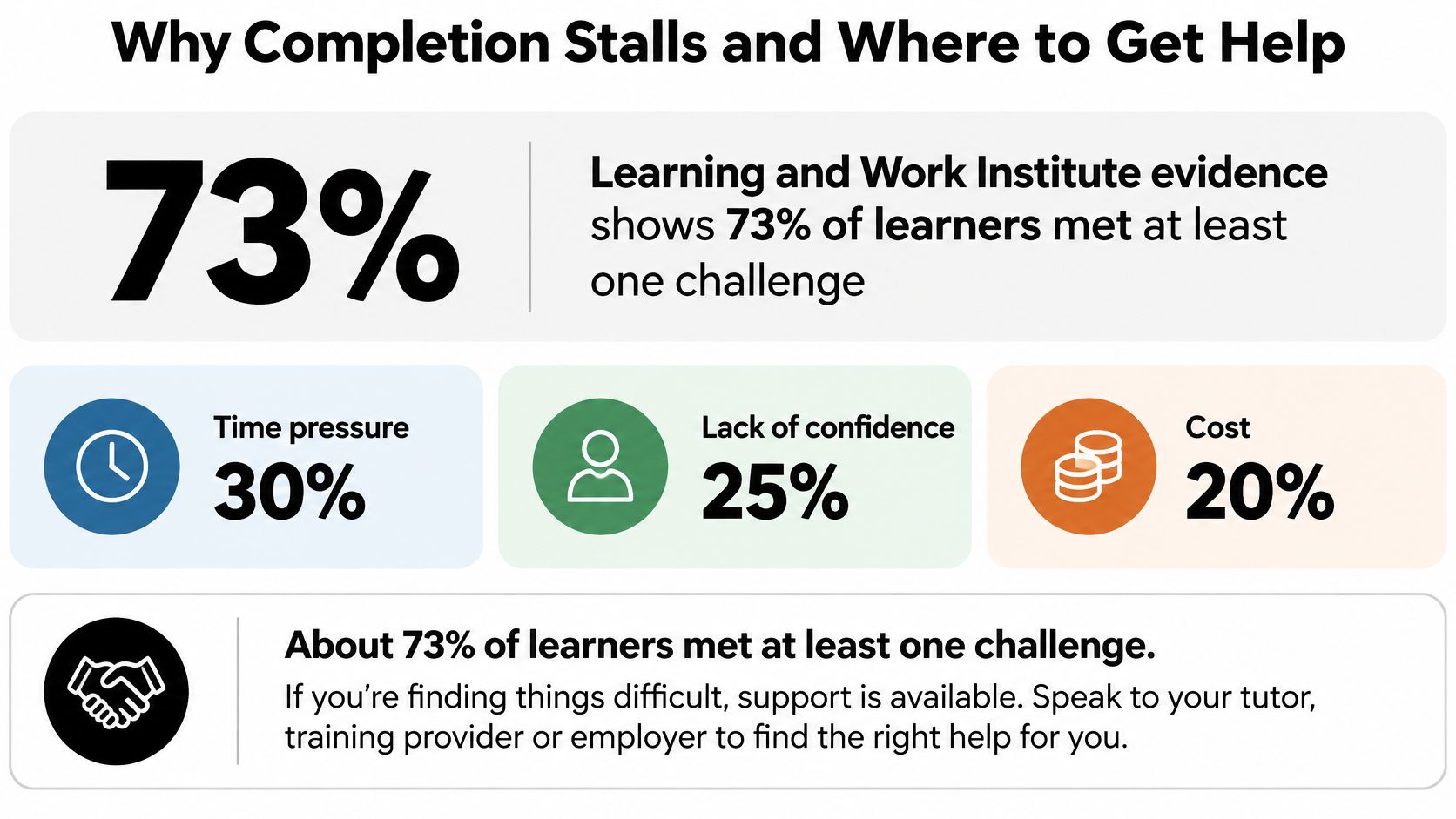
73% of learners encountered at least one learning challenge, led by time pressures (30%), lack of confidence (25%) and cost (20%), according to UK-wide participation evidence cited in the Learning and Work Institute's adult participation report. These figures describe learning challenges, not a care-course failure rate.
A low price doesn't remove a difficult rota, an unfamiliar form or uncertainty about what an employer wants. Those obstacles need different kinds of help.
The pattern is a useful reminder that difficulty completing training is not just a lack of motivation.
Different learners need different interventions
Consider a night worker who has a brief quiet period before travelling home. They can manage a focused activity, but not a long lesson with no obvious stopping point. Their useful next step is a manageable study task, not another reminder to finish the entire course.
An applicant may understand the lesson yet be unable to locate the evidence-upload button. More explanation of the care topic won't resolve that problem. They need a plain instruction naming the screen, button and file type.
Another worker may lose confidence after a failed login and assume they've done something wrong. A clear password-reset route and access to a person can help them restart without abandoning the course.
Government evidence summarised in the digital inclusion report for disabled adults indicates that around 15% of people cannot complete foundational digital tasks, while only 27% know where to go to improve their digital skills. Being connected isn't the same as being confident with registration, uploads or account recovery.
Separate a technical fault from a training decision
Technical support is the right route when something you should be able to use doesn't work. Examples include a blank video, a failed login, a successful payment with no visible course or a certificate that won't download.
Study and pathway advice addresses a different question: whether the course meets the requirement in front of you. That could mean clarifying a refresher request, understanding a course outline or checking what further evidence an employer expects. A course certificate alone shouldn't be treated as confirmation of employment or sponsorship eligibility.
Accessible information matters here. A Learning and Work Institute report found it was a barrier for 43% of people aged 45 to 54 and 49% of those aged 55 and over. Clear guidance before purchase can prevent someone completing training that doesn't match their intended role.
Removing the fee can help, but resumable learning and a route to a person may matter more than extra catalogue choice when the immediate goal is usable evidence.
Ask for a specific next action
Our support team is available throughout your learning journey, and we provide reasonable support for technical access issues. Use Cura Academy's contact page and include the email used for purchase, course name, device and a short description of the problem. Never send your password or full payment-card details.
If a course looks different after an update, that doesn't automatically mean your purchase is missing. We guarantee access to equivalent training, not a particular individual course version, because lessons may be updated, replaced or improved. Ask how to continue from the recorded stage rather than guessing.
A useful error message should explain the next action. When it doesn't, you can copy this message:
My purchase email is [your email], and the course is [course name].
I'm using [device and browser]; the problem is [brief description or error wording].
My last completed activity was [activity name]. Please tell me how to continue.
Pick the Access That Fits Your Rota
Choose a single course or short bundle when you have a defined training requirement and don't need a wider library. Choose membership when you expect to complete several topics and refreshers over the coming months and can keep the payment active.
Before paying, compare the course titles with the list your employer has given you. If the wording doesn't clearly match, ask our support team for the course outline and confirm acceptance with the employer.
Turn a requirement into a realistic plan
Use our health and social care courses guide to help organise the subjects you need. Then prioritise the requirement attached to your next booking or start date rather than opening everything at once.
- Confirm the fit: Match the course content to the requested training, not just a familiar title.
- Allow room to finish: Choose an access window that accommodates your rota and time to resolve questions.
- Protect your evidence: Keep completed certificates somewhere you can reach independently of a dashboard.
Cura Academy offers membership at £10 a month. Both membership plans include unlimited access to available courses, new courses added during membership and platform support. Platform access remains active only while membership is valid; if payment fails, course progress and certificates may become inaccessible until it's resolved.
The useful outcome is training you can finish and evidence you can present, not an unused login. Make your first study appointment small enough to keep, and give yourself a clear next task for the following session.
Cura Academy offers flexible online care training with support throughout your learning journey. Visit Cura Academy to match your employer's training list to a suitable access option, then sign in on the device you'll use and complete a short activity before your next shift.